
KDP Paperback Cover Template: Complete Guide to Download, Customize, and Design Your Book Cover
Creating a professional paperback book cover is an important step when publishing through Amazon Kindle Direct Publishing (KDP). Your cover is often the first thing potential readers notice, so it should look attractive while meeting the platform’s printing requirements.
However, designing a paperback cover is not just about choosing colors, adding a title, and uploading an image. You also need the correct dimensions, spine width, bleed, and safe margins to ensure everything appears properly when printed.
A KDP Paperback Cover Template makes this process easier by providing a ready-made layout that shows exactly where to place your front cover, back cover, and spine. Whether you are a beginner or an experienced designer, using the correct template can save time and help prevent common formatting problems.
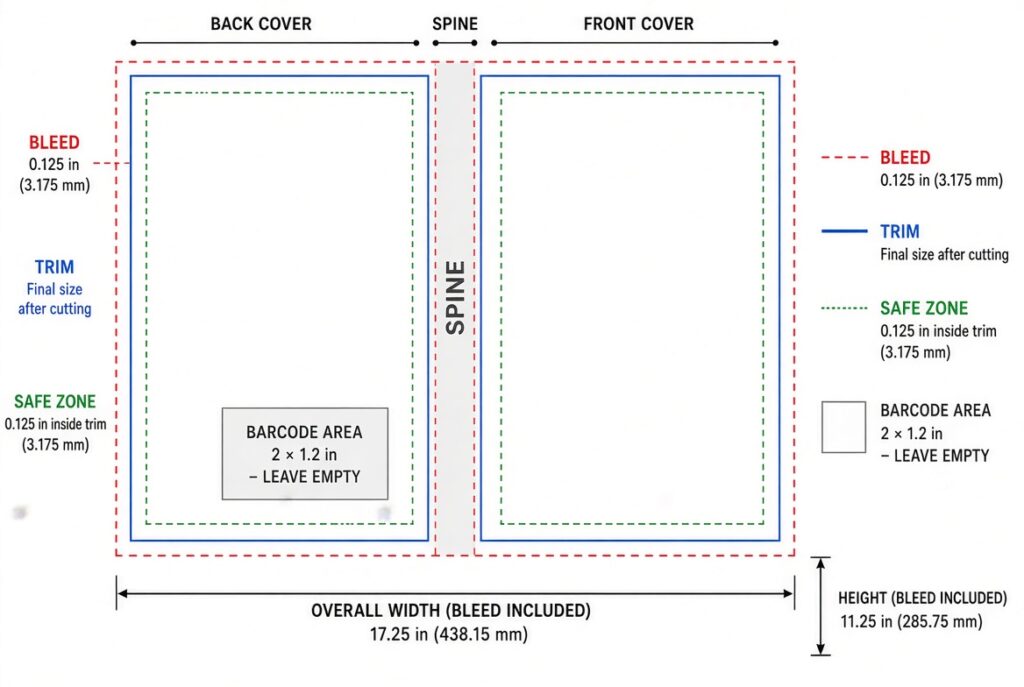
In this guide, you will learn what a KDP paperback cover template is, how to download one, how to customize it using popular design software, and how to prepare a print-ready cover.
What Is a KDP Paperback Cover Template?
A KDP Paperback Cover Template is a layout guide that helps authors create a properly sized full-wrap paperback book cover.
Unlike an eBook cover, which only displays the front artwork, a paperback cover includes three connected sections: the front cover, back cover, and spine. These sections must fit together within a specific document size based on the book’s printing specifications.
The template provides the measurements and boundaries needed to position each section correctly. It also identifies the bleed area, safe margins, and other important printing guidelines.
Amazon KDP provides downloadable templates in PDF and PNG formats through its cover template generator. You can import these files into compatible design applications and use them as a reference while creating your artwork.
The template does not automatically design your book cover. Instead, it provides the correct layout so you can concentrate on the creative design without guessing the measurements.
Why Do You Need a KDP Paperback Cover Template?
Designing a paperback cover without accurate measurements can create several problems. Your front cover might be too wide, the spine could be incorrectly positioned, or important text might fall outside the safe area.
A properly generated template helps avoid these issues by providing a visual guide for the complete cover.
It is particularly useful for independent authors who want to design their own covers without hiring a professional designer. Instead of calculating every measurement manually, you can work with a template that matches your manuscript specifications.
Another advantage is consistency. If you publish multiple paperback books, using properly calculated templates helps you maintain accurate layouts across different titles.
Most importantly, a template makes it easier to prepare a cover that meets KDP’s calculator technical requirements.
What Is Included in a KDP Paperback Cover Template?
A full-wrap paperback template contains several important sections. Understanding each one helps you position your artwork and text correctly.
1. Front Cover
The front cover is the main display area of your book. It typically includes the title, subtitle, author name, and primary artwork.
Your design should communicate the subject or genre of the book while remaining readable when displayed as a small thumbnail.
For example, a business book may use a clean layout with professional typography, while a fiction novel may feature more expressive artwork.
2. Back Cover
The back cover provides additional information about your publication. Authors commonly use this section for the book description, author biography, and promotional text.
Keep the layout organized and avoid placing too much information in a small space. If KDP will add the barcode automatically, leave the designated area available for it.
3. Spine
The spine connects the front and back covers. It usually displays the book title and author name, making the publication easier to identify on a bookshelf.
Its width depends on the final page count and selected paper type. Therefore, you should never estimate the spine measurement or copy it from another book.
4. Bleed Area
Bleed is the additional space extending beyond the final trimming boundaries.
It allows background colors and images to reach the edges of the printed cover without leaving unwanted white borders.
For paperback covers, KDP generally requires 0.125 inches of bleed at the top, bottom, and outside edges.
5. Safe Areas
Safe areas indicate where important text and design elements should remain.
Your book title, author name, and other essential information should not be positioned too close to trimming boundaries or spine folds.
Following these guidelines helps prevent important content from being cut off or appearing incorrectly after printing.
How to Download a KDP Paperback Cover Template
Downloading the correct template is the first step before starting your cover design.
Follow this process:
Step 1: Open the Cover Template Generator
Open Amazon’s official KDP Cover Calculator and select the option for generating a paperback cover template.
Step 2: Select Your Interior Printing Options
Choose the appropriate printing type, such as black-and-white or color, and select the paper type that matches your manuscript.
Step 3: Enter Your Trim Size
Select your paperback’s final trim size. Common options include 5 × 8 inches, 5.5 × 8.5 inches, and 6 × 9 inches.
Step 4: Enter Your Final Page Count
Enter the total page count of your formatted interior manuscript. This information is essential because it determines the spine width.
Step 5: Select the Measurement Units
Choose inches or millimeters according to your preference.
Step 6: Generate and Download the Template
After entering the required information, calculate the dimensions and download the available PDF or PNG template.
Once downloaded, open it in your preferred design software and use it as a reference layer.
Remember that if you change your manuscript’s page count, paper type, or trim size, you should generate a new template.
How to Create a Paperback Cover Using a Template
After downloading the template, the next step is to create your actual book cover. You can use different design applications depending on your experience and requirements.
Creating a KDP Paperback Cover in Canva
<AsyncImage query=”Canva book cover design editor paperback full wrap book cover template workspace” aspectRatio=”16:9″ width=”100%”/>
Canva is a convenient option for beginners who want to create an attractive paperback cover without learning complicated design software.
Start by creating a custom-size design using the complete dimensions provided by your downloaded template. Import the PNG template and position it as a reference layer.
Next, create your front cover artwork, add your book title and author name, and design the back cover with your description and other relevant information.
Make sure the spine and bleed areas match the template. Before exporting, remove the template guide from the final artwork.
Export your design as a PDF suitable for printing and check that the document dimensions have not changed.
Creating a KDP Paperback Cover in Photoshop
<AsyncImage query=”Adobe Photoshop professional paperback book cover full wrap design workspace” aspectRatio=”16:9″ width=”100%”/>
Adobe Photoshop is suitable for designers who want greater control over images, typography, textures, and visual effects.
Create a new document using the complete cover dimensions from your template. Import the downloaded PNG or PDF guide and position it above your artwork layers.
You can then design the front cover, back cover, and spine separately while keeping everything aligned with the template.
Use high-resolution images and keep important text within the recommended safe areas. Before exporting, hide the template layer and save the finished cover as a print-ready PDF.
Creating a KDP Paperback Cover in Adobe Illustrator
<AsyncImage query=”Adobe Illustrator full wrap paperback book cover vector graphic design workspace” aspectRatio=”16:9″ width=”100%”/>
Adobe Illustrator is useful for professional book cover layouts, particularly when working with vector graphics, typography, and precise measurements.
Set up your document using the calculated full-cover dimensions and import the template as a locked reference layer.
Create separate design elements for the front, back, and spine. Illustrator also makes it easier to align text, shapes, and artwork accurately.
Once the design is complete, remove the reference template and export the document using appropriate PDF settings for print production.
KDP Paperback Cover Template Dimensions
The dimensions of a paperback template depend on your book’s trim size, spine width, and bleed requirements.
For example, a book with a 6 × 9-inch trim size has a front cover measuring 6 × 9 inches before bleed is added.
The complete cover width includes both cover panels, the spine, and the outside bleed. Its height includes the top and bottom bleed.
The general calculation is:
Full Cover Width = Back Cover + Spine + Front Cover + 0.25 inches
Full Cover Height = Trim Height + 0.25 inches
Consider a 200-page paperback book with a 6 × 9-inch trim size and black-and-white printing on white paper.
Its estimated spine width is:
200 × 0.002252 = 0.4504 inches.
The resulting full cover dimensions are approximately:
- Width: 12.7004 inches
- Height: 9.25 inches
This is an illustrative paperback calculation. Always use the exact dimensions from the generated template for your final design.
How to Customize Your Paperback Cover Template
A downloaded template provides the technical layout, but the actual appearance of your book depends on how you customize it.
Start by selecting artwork that matches your book’s subject and intended audience. Your front cover should communicate the book’s purpose without making the design unnecessarily complicated.
Typography is equally important. Choose a readable title font and maintain enough contrast between the text and background. Avoid using too many font styles because they can make the design look disorganized.
For the back cover, write a short and engaging description that explains what readers can expect from the book. Keep the author’s biography and additional information concise.
Finally, check the spine alignment and barcode area. Small layout mistakes can become noticeable once the book is printed.
Best Software for Designing a KDP Paperback Cover
Choosing the right design application depends on your experience, budget, and the complexity of your project.
| Software | Best suited for | Main advantage |
|---|---|---|
| Canva | Beginners | Simple design workflow |
| Photoshop | Image-heavy covers | Advanced image editing |
| Illustrator | Professional designers | Precise vector layouts |
| Affinity Designer | Independent designers | Flexible design tools |
For beginners, Canva is a practical starting point. Photoshop and Illustrator provide more advanced control for designers who regularly create professional publishing materials.
Common KDP Paperback Cover Template Mistakes
Even when using a downloaded template, authors can make mistakes that affect the final printed result.
One common problem is using an outdated template after changing the manuscript’s page count. This can result in an incorrect spine width and poor alignment.
Another mistake is placing important text too close to the edges. Always follow the safe-area guidelines and keep essential information away from trimming boundaries.
Low-resolution images can also reduce the quality of the printed cover. Use artwork with at least 300 DPI at its final printed size.
Some designers accidentally leave template guides visible in the exported PDF. These guides should be removed before uploading the finished cover.
Finally, avoid exporting separate front and back cover files when a complete paperback cover PDF is required. Your final file should contain the back cover, spine, and front cover in one continuous layout.
How to Export a Print-Ready KDP Paperback Cover PDF
Once your design is complete, prepare the file for uploading to Amazon KDP.
First, remove or hide the template reference layer. Check that the final document matches the generated dimensions, including the required bleed.
Make sure your images have sufficient resolution and that fonts are properly embedded in the exported PDF. Flattening the final artwork where appropriate can also help prevent unexpected rendering issues.
Export the complete cover as a single PDF file. Avoid including crop marks, template guides, comments, or other unnecessary elements.
After exporting, inspect the PDF and upload it through your KDP publishing dashboard. Use Print Previewer to check the cover’s alignment, text placement, spine, and barcode area.
Do not approve the final cover until you have reviewed the entire layout.
KDP Paperback Cover Template Checklist
Before uploading your finished paperback cover, review these important points:
- The trim size matches the interior manuscript.
- The page count is final.
- The spine width matches the generated template.
- The required bleed is included.
- Important text remains within safe areas.
- The barcode area is properly reserved.
- Images have at least 300 DPI resolution.
- Template guides have been removed.
- The complete cover is exported as one PDF.
- The design has been checked in KDP Print Previewer.
Following this checklist can help reduce common formatting problems before submitting your book.
Frequently Asked Questions (FAQs)
1. What is a KDP Paperback Cover Template?
A KDP Paperback Cover Template is a layout guide that provides the measurements and boundaries needed to create a complete paperback cover, including the front cover, back cover, spine, bleed, and safe areas.
2. Is the KDP Paperback Cover Template free?
Yes. Amazon provides its official cover template generator free of charge. Authors can enter their book specifications and download the available templates without purchasing a separate subscription.
3. Can I download a KDP paperback cover template in PDF format?
Yes. The template generator provides downloadable PDF and PNG formats, allowing you to use the guide in compatible design applications.
4. Can I edit a KDP paperback cover template?
Yes. You can import the downloaded template into compatible software such as Photoshop, Illustrator, Canva, or Affinity Designer and use it as a reference while creating your artwork.
5. What is the difference between a paperback cover template and an eBook cover?
A paperback cover template includes the front cover, back cover, spine, and required printing areas. An eBook cover is generally a single front-facing image without a spine or back cover.
6. What size should my KDP paperback cover be?
The correct size depends on your selected trim size, page count, paper type, and required bleed. You should generate a template using your actual manuscript specifications instead of using a universal cover size.
7. Can I use Canva for a KDP paperback cover?
Yes. Canva allows you to create custom-sized designs and add your own artwork and typography. Make sure the final export matches the generated cover dimensions and KDP’s PDF requirements.
8. Why does my paperback cover template include a spine?
The spine connects the front and back cover and forms part of the complete printed book cover. Its width depends on the page count and paper specifications.
9. What resolution should my paperback cover images have?
KDP requires cover images to have a minimum resolution of 300 DPI. Using high-resolution artwork helps maintain image clarity when the cover is printed.
10. Why is my KDP paperback cover being rejected?
Common reasons include incorrect dimensions, insufficient image resolution, missing bleed, misplaced text, and PDF formatting problems. Review the specific warnings in KDP Print Previewer to identify and correct the issue.
11. Can I use the same paperback cover template for multiple books?
You can reuse a design style, but you should not assume that one template will fit every book. Different trim sizes, page counts, and paper types can change the required dimensions.
12. Do I need to remove the template lines before uploading?
Yes. The downloaded template should only be used as a reference during design. Remove or hide its guide lines and measurements before exporting your final cover PDF.
Final Thoughts
A properly prepared KDP Paperback Cover Template makes it easier to design and publish a professional-looking paperback book. It provides the measurements needed to position the front cover, back cover, spine, and other important elements accurately.
By selecting the correct manuscript specifications, downloading the appropriate template, and customizing it in compatible design software, you can avoid many common formatting mistakes.
Before submitting your book, always check the final PDF dimensions, image resolution, bleed, safe areas, and spine alignment. A carefully prepared cover gives your publication a more professional appearance and helps ensure it is ready for printing.